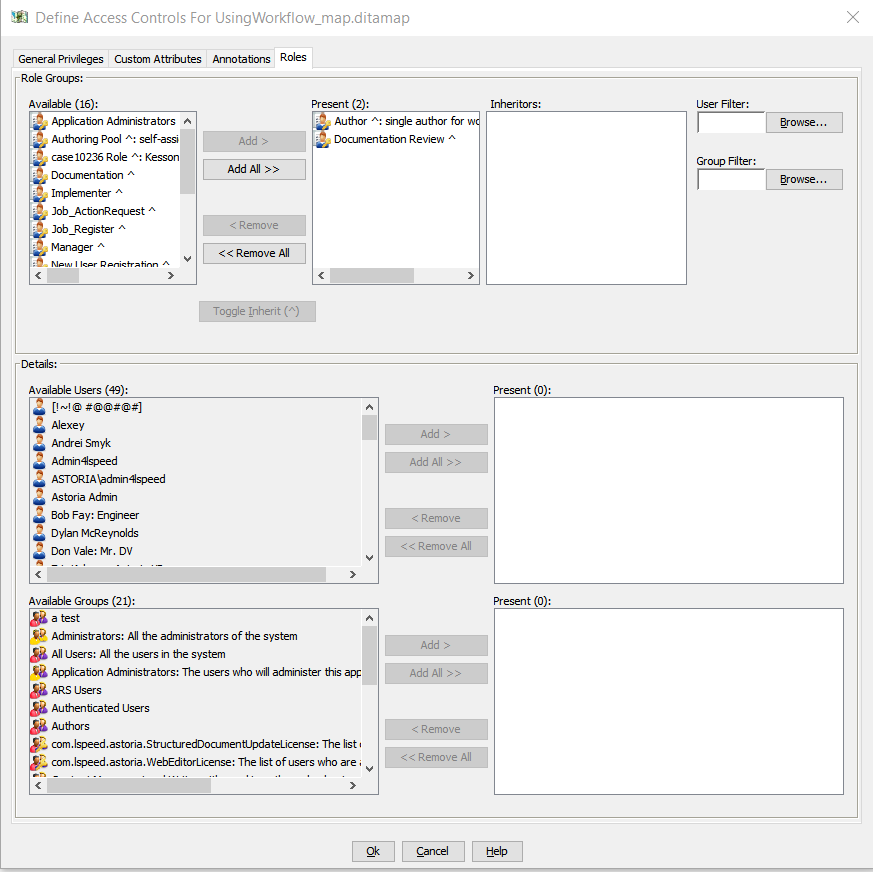
Use the Role tab to assign users or groups to a role on the selected object. Members of a role are granted the privileges defined by the role, and can be selected to participate in workflow tasks.
- In the Define Access Controls dialog, select the Role tab.
The dialog displays the Role tab selections.
The
Role Groups area displays the Roles that are defined in the repository.
- To associate roles with the selected object, select or multiselect roles from the Available box and click Add to move them to the Present box.
- To remove roles associated with the selected object, select or multiselect roles from the Present box and click Remove to move them to the Available box.
- To assign members to a role, select a role in the Present box and add users or groups from the Available boxes to the Present boxes.
When you select a role, the Inheritors box displays any user or group whose membership in a role defined on a higher-level object in the repository hierarchy has caused them to inherit the role membership. If no user or group is displayed, the membership is not inherited. If the list of users or groups is large, use the Filter boxes to focus on how a specific user or group has inherited the membership.
- If more than one role is in the Present box, select additional roles and assign memberships as needed.
- Click OK.
The role membership assignments are saved in the repository. Users who are members of the role can perform actions as defined in the Role definition and can participate in workflow tasks on the selected object.